Ever get that feeling like you’re walking through a digital fog? You’re trying to get online, maybe stream that new hit show everyone’s talking about, or perhaps just snag that limited-edition drop everyone’s freaking out about on Twitter, and BAM! Safari just… stops. “Safari can’t establish a secure connection to the server.” Ugh. It’s the digital equivalent of a sputtering engine when you’re already running late for your brunch plans. We’ve all been there, right? It's frustrating, it’s annoying, and it often leaves you staring blankly at your screen, wondering if your Wi-Fi is secretly judging your life choices.
But before you start contemplating a full-on tech exorcism or blaming cosmic rays, let’s talk about something a little more… mundane, yet surprisingly powerful: old configuration profiles. Think of them like the digital clutter in your closet. You know, those ancient sweaters you might wear someday, or that one charging cable for a gadget you haven’t seen in years? They’re just sitting there, taking up space, and sometimes, they cause more trouble than they’re worth. And in the case of Safari, these digital dust bunnies can seriously mess with your ability to connect.
The Ghost in the Machine: What Are Configuration Profiles Anyway?
So, what exactly are these phantom profiles? In the Apple ecosystem, a configuration profile is essentially a little packet of instructions that tells your device how to behave. They’re often used by IT departments in businesses to set up company email, Wi-Fi networks, or security settings. They can also be installed by app developers, or even by you, if you’ve ever tinkered with setting up specific VPNs or experimental features.
Imagine you’re setting up a new smart home device. You download an app, and that app guides you through connecting it to your Wi-Fi, maybe setting up a password, or even defining how it interacts with other devices. A configuration profile is kind of like that, but it’s more system-level. It’s designed to streamline settings and ensure consistency across devices. Pretty neat, right? Until it’s not.
When Good Settings Go Bad
The problem arises when these profiles become outdated, conflict with newer settings, or were never properly removed. Think of it like having multiple GPS apps on your phone. If you have Google Maps, Apple Maps, and Waze all vying for attention, and one of them has a glitchy update, it can easily send you down the wrong road. Your device might be trying to follow instructions from an old profile that no longer aligns with how the internet, or more specifically, how Safari wants to establish a connection.
This is especially true for websites that use stricter security protocols, like HTTPS. If an old profile is telling your device to use an outdated security certificate or a specific encryption method that’s no longer considered safe, Safari will rightly refuse to connect. It's like trying to open a modern bank vault with an antique key – it just won’t work. And the error message you get? "Safari can't establish a secure connection to the server." It’s a polite way of saying, "Nope, not happening, safety first!"
The Digital KonMari Method for Your Mac
So, how do we declutter these digital spirits? It’s time for a bit of a digital KonMari session. We’re going to go through your Mac’s settings and see what sparks joy… or rather, what sparks a stable internet connection. Don’t worry, it’s not as intimidating as it sounds, and it’s way less likely to involve a tearful goodbye to a sentimental sock.
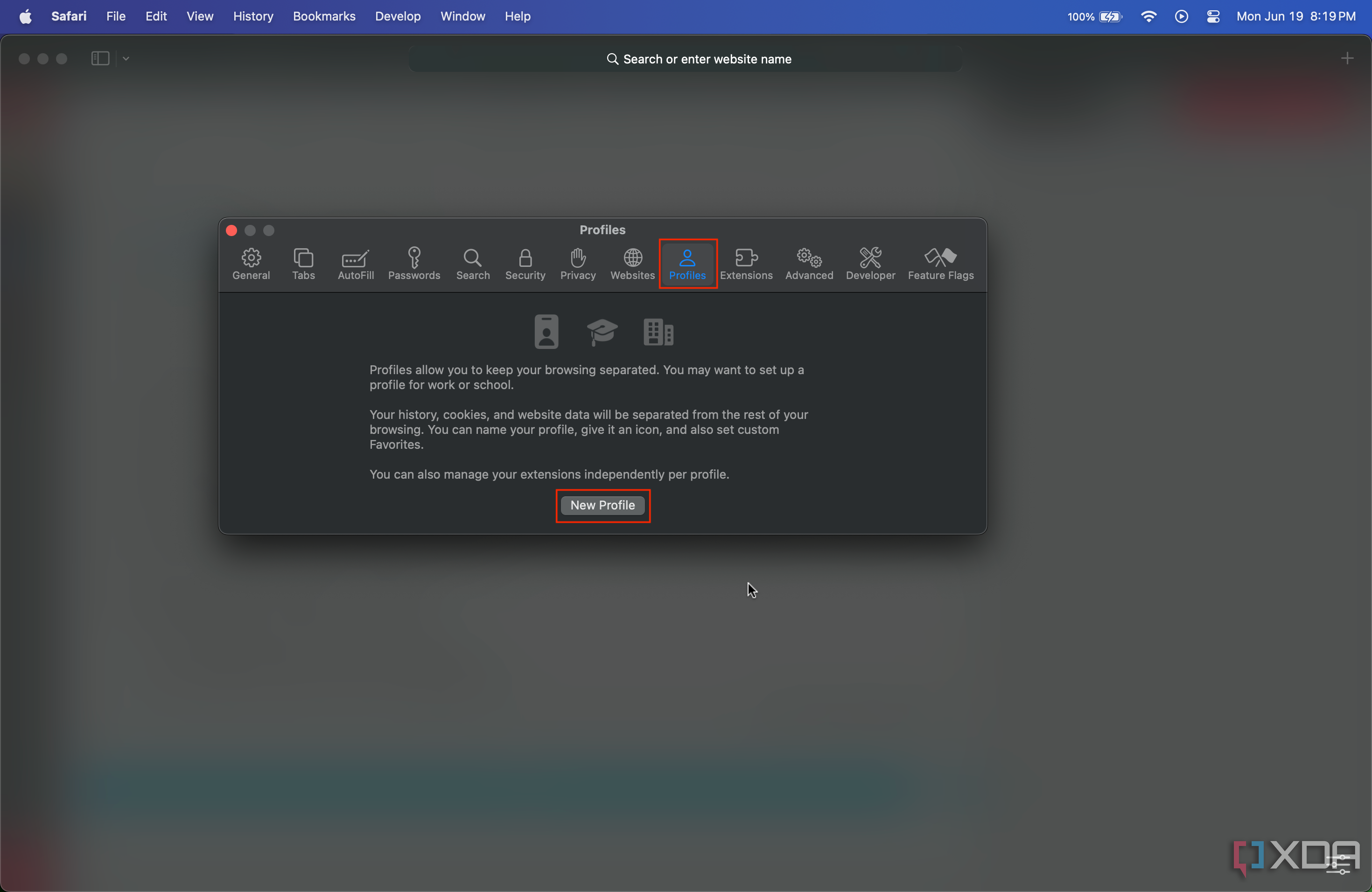
The primary place to look is in your Mac’s System Settings (or System Preferences on older macOS versions). Here’s a step-by-step guide to help you banish those rogue profiles:
Step 1: Dive into System Settings
First things first, click on the Apple menu in the top-left corner of your screen and select System Settings. If you’re on an older Mac, it will be labeled System Preferences. This is your control center for all things Mac, so get comfortable!
Step 2: Locate the Profiles Section
Now, this is where it can be a little different depending on your macOS version. On macOS Ventura and later, you’ll need to scroll down the left-hand sidebar and look for Privacy & Security. Within Privacy & Security, you’ll find a section called Profiles. Click on that.
On older versions of macOS, the "Profiles" option might be a standalone icon in the main System Preferences window. Just give it a good look around. If you’re really struggling, a quick search in the System Settings/Preferences search bar for "Profiles" will usually do the trick. It's like a digital treasure hunt, but the treasure is a working internet connection!
Step 3: The Great Profile Purge
Once you’re in the Profiles section, you’ll see a list of any installed configuration profiles. This is where the magic (or the necessary tidying) happens. Take a look at each one. Do you recognize it? Does it have a name that sounds familiar, like from a company you used to work for, or a specific app you installed for a particular purpose?
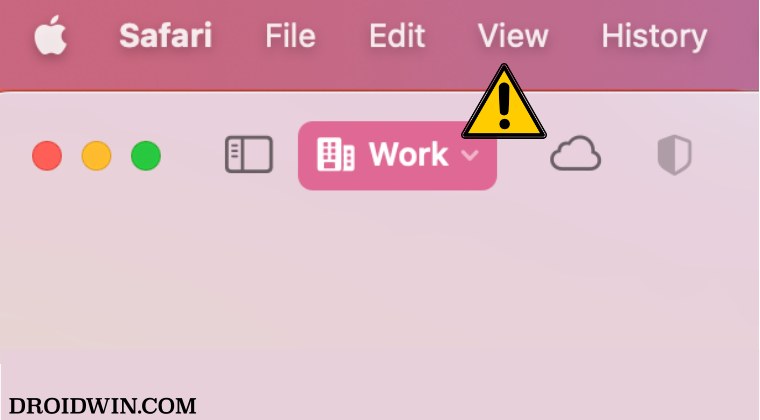
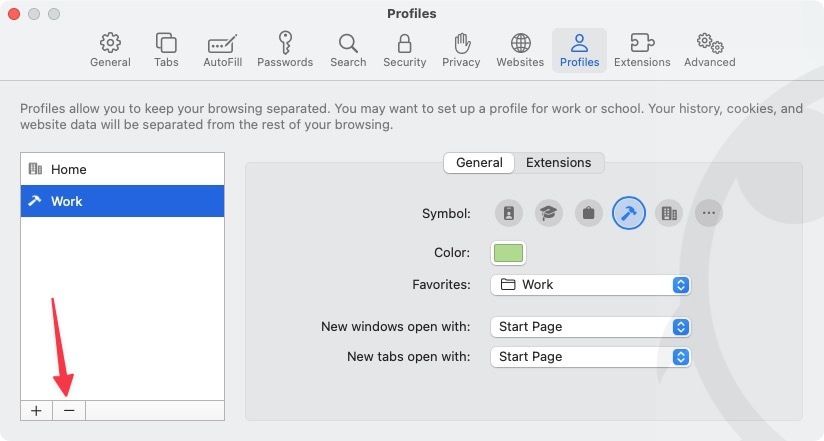
If you see a profile that you don’t recognize, or one that you know you no longer need, it’s time to say goodbye. Select the profile you want to remove. You’ll then see a button, usually labeled Remove Profile or a minus (-) button. Click it.
Here’s a little pro tip: sometimes, when you remove a profile, macOS will ask you for your administrator password. This is just to ensure that only authorized users can make changes to your system settings. It’s a good security measure, so don’t be alarmed. Just enter your password, and proceed.
You might have to remove a few profiles one by one. It’s like clearing out your inbox – a bit tedious, but ultimately satisfying. Each profile you remove is one less potential point of digital friction. Think of yourself as a digital minimalist, shedding unnecessary baggage to achieve peak performance.
Step 4: Restart Safari (and Maybe Your Mac)
After you’ve removed any suspicious or outdated profiles, it’s a good idea to give Safari a fresh start. Close all Safari windows completely. You can do this by clicking Safari in the menu bar and selecting Quit Safari, or by right-clicking the Safari icon in your Dock and selecting Quit.
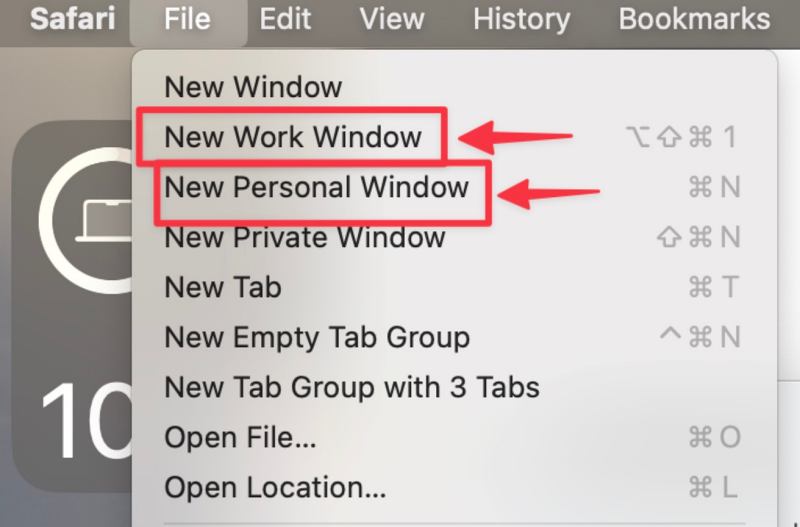
For good measure, especially if you’ve removed several profiles or if the issue was particularly stubborn, it’s not a bad idea to restart your entire Mac. Just click the Apple menu and choose Restart. This helps ensure that all system settings are reloaded correctly and that any lingering digital ghosts are well and truly banished.
Step 5: Test Your Connection
Now for the moment of truth! Open Safari again and try to visit a website that was previously giving you trouble. Hopefully, you’ll find that the "Safari can't establish a secure connection" error is gone, and you can browse the web to your heart’s content. Victory! You can now get back to your online adventures, whether that's binge-watching the latest season of your favorite show, researching your next travel destination, or diving deep into the rabbit hole of obscure historical facts on Wikipedia.
Beyond Profiles: Other Digital Decluttering Tips
While clearing out old configuration profiles is a powerhouse fix for Safari connection issues, it’s also a great reminder that digital clutter can cause a surprising number of problems. Think of it as good digital hygiene!
Here are a few other easy-going digital decluttering tips:
- Clear Your Browser Cache and Cookies: Just like configuration profiles, outdated cached data can sometimes cause websites to load incorrectly. In Safari, go to Safari > Settings (or Preferences), then click on the Privacy tab. You’ll find options to manage cookies and other website data.
- Update Your Software: This might sound obvious, but keeping macOS and your applications, especially Safari, updated is crucial. Updates often include security patches and performance improvements that can prevent connection issues. It's like getting your car serviced – preventative maintenance keeps things running smoothly.
- Check Your Network Settings: If you’re still having trouble, it’s worth a quick look at your Wi-Fi settings. Are you connected to the correct network? Sometimes, a simple disconnect and reconnect to your Wi-Fi can work wonders.
- Disable VPNs or Proxy Servers (Temporarily): If you’re using a VPN or proxy server, try disabling it temporarily to see if that resolves the connection issue. Some VPNs or proxies can interfere with secure connections. It's like taking off a bulky coat when you're indoors – sometimes you just need to be in your natural state.
A Nod to the Digital Nomads and the Tech-Savvy
For those of you who travel a lot, or who have had to connect to various corporate networks, you've likely encountered configuration profiles. Think back to that time you connected to the conference Wi-Fi, or that hotel network. Often, a profile would be installed to simplify the process. While incredibly convenient at the time, these can easily become digital detritus left behind. It’s a bit like leaving behind a souvenir from a trip – it was useful then, but it doesn’t need to live in your permanent digital residence.

And for the tech-curious among us, understanding configuration profiles is a small step into the deeper workings of your device. It’s like peeking behind the curtain of Oz. You don’t need to become a certified IT guru, but knowing that these hidden settings exist can empower you to troubleshoot more effectively. It’s about taking a little bit of control back from the digital ether.
Did you know that the first configuration profiles for Apple devices were introduced with iOS 4 in 2010? They’ve been around longer than Instagram’s ‘Stories’ feature! It just goes to show how long some of these digital components can stick around, silently influencing our online experience.
The Daily Grind and Digital Serenity
In our fast-paced, always-connected lives, those moments of frustration with our tech can feel like tiny pebbles in our shoes, constantly reminding us of an underlying issue. This simple act of deleting old configuration profiles, while technical, is remarkably similar to tidying up any aspect of our lives. It’s about removing the unnecessary, the outdated, the things that are no longer serving us, so that we can move forward with more ease and efficiency.
Think about it: how often do we hold onto old habits, old grudges, or even just old physical items that weigh us down? Clearing out those digital profiles is a micro-practice in letting go. It’s a small win that can lead to a smoother, more enjoyable online experience, allowing us to get back to the things that truly matter – whether that’s connecting with loved ones, pursuing our passions, or simply enjoying a quiet moment of digital serenity.
So next time Safari throws a fit, don’t despair. Take a deep breath, channel your inner digital declutterer, and see if those old configuration profiles are the silent saboteurs. A little bit of tidying up might just be the breezy, effortless fix you’ve been looking for. Happy browsing!