Ever find yourself mid-flow, the creative juices bubbling, only to be met with a frustrating "relay error" when trying to share your latest masterpiece or connect to an important online resource? It’s like your iPhone's digital handshake is suddenly a stuttering mess. Well, before you declare war on your Wi-Fi or resign yourself to offline anonymity, there's a surprisingly simple fix that can get your connection back on track: resetting your network settings. Think of it as clearing out the digital cobwebs that are causing those pesky relay errors!
This little-known trick isn't just for tech wizards; it's a game-changer for anyone who relies on their iPhone for more than just calls. For artists, it means seamlessly uploading those stunning new sketches or sharing a time-lapse video of your painting process with your followers. Hobbyists can finally stop wrestling with glitchy connections when trying to download that complex 3D model for their next project or connect with fellow enthusiasts in online forums. And for casual learners, it’s the key to uninterrupted access to educational videos, research articles, or that virtual language exchange you’ve been looking forward to.
Imagine the possibilities! A graphic designer, working on a vibrant digital illustration, can now instantly share it to a collaborative platform without a hitch. A baker, perfecting a new cake design, can upload a recipe tutorial to their blog in real-time. Even someone learning to knit can get instant feedback on a tricky stitch by sharing a quick video to a crafting group. Whether you're experimenting with AI art generators, exploring new musical compositions, or simply trying to stream a documentary, a stable connection is paramount.
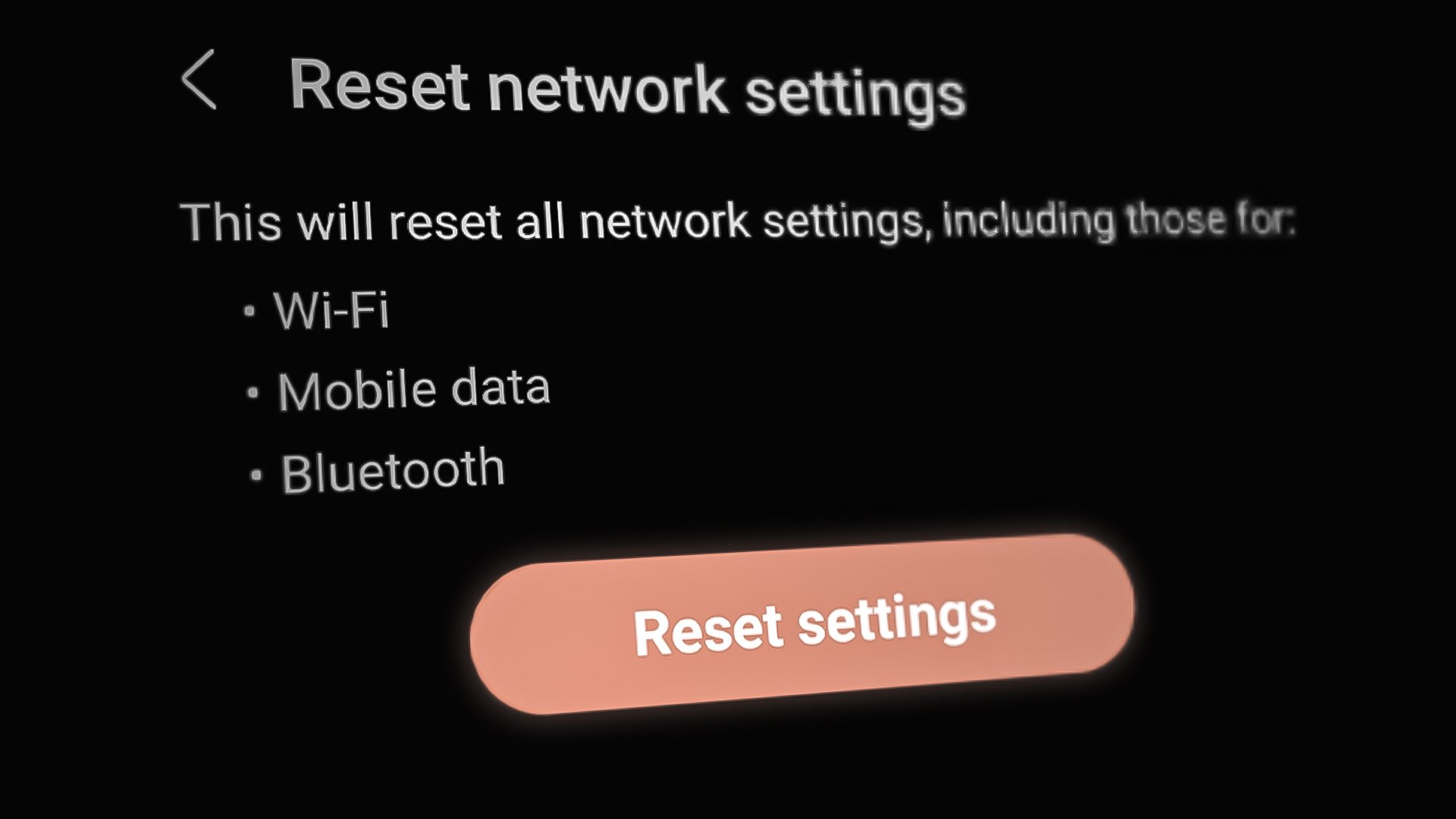
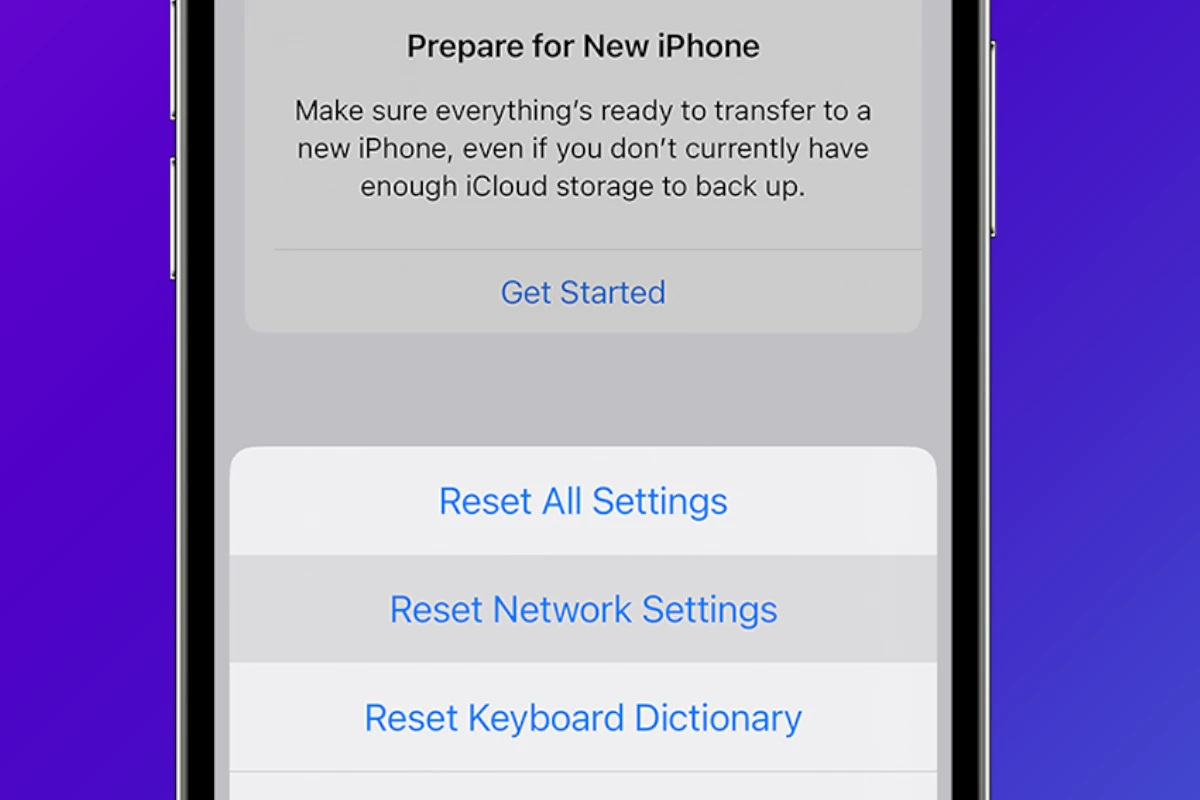
So, how do you perform this digital declutter? It's easier than you think! On your iPhone, navigate to Settings, then tap on General. Scroll all the way down to Transfer or Reset iPhone, and then select Reset. Finally, choose Reset Network Settings. You'll need to confirm your choice, and your iPhone will restart. Don't worry; this won't delete your apps, photos, or personal data. It simply clears out saved Wi-Fi networks, Bluetooth pairings, and VPN configurations – the very things that can get tangled up and cause those frustrating relay errors.
The beauty of this process lies in its simplicity and effectiveness. It's like giving your iPhone a fresh start on its digital journey. You'll likely notice an immediate improvement in your connection speed and stability. The satisfaction of seeing those errors disappear and your digital life flow smoothly again is incredibly rewarding. It’s a small step that unlocks a world of uninterrupted creativity and learning, proving that sometimes, the most powerful solutions are the most accessible. So next time you encounter a relay error, don't despair – just hit that reset button and get back to what you love!
![How to Reset Network Setting on iPhone [Advanced Guide]](https://www.apeaksoft.com/images/solution/how-to-reset-network-settings-on-iphone.jpg)