Alright, iPhone pals, gather 'round! We need to have a little chat about something that might be happening with your super-secret, incognito browsing sessions. You know, those times when you’re Googling “how to make the perfect grilled cheese” at 3 AM, or maybe researching if that celebrity you love actually owns a pet llama (spoiler alert: some do!). You’re thinking, "I'm practically invisible!" You've got your Private Relay turned on, right? It's like a stealth cloak for your internet adventures, keeping your browsing habits under wraps. But here’s the sneaky tea: sometimes, your iPhone decides to wave that cloak goodbye and let everyone see you browsing for… well, whatever it is you're browsing for.
Don't panic! This isn't some shadowy government conspiracy (probably). It's more like your iPhone got a little too excited about showing off your "public" browsing habits. Imagine you're trying to sneak a cookie from the jar before dinner, and your iPhone, instead of whispering sweet nothings about your dietary discretion, starts doing a dramatic interpretive dance about your cookie quest. That’s kind of what's happening when Private Relay decides to take a little vacation.
So, what's the deal? Why would your trusty iPhone ditch its privacy duties? Well, sometimes, certain websites or apps just don't play nice with the whole "invisible internet person" vibe that Private Relay creates. Think of it like this: you're trying to enter a super exclusive club, and you’ve got your VIP pass (that’s Private Relay). But some clubs have really strict bouncers who say, "Nope, your pass doesn't work here! You gotta show me your ID!" And your iPhone, being the obedient little device it is, shows its ID, thus revealing your presence. Suddenly, your browsing isn't quite so private anymore.
The main culprits in this privacy party pooper scenario are usually:
- Websites that require location services: Ever tried to find the nearest taco truck using your phone? That app needs to know where you are, and Private Relay can sometimes make that a bit tricky. So, your iPhone might just give up the ghost and tell the website, "Okay, fine, here’s where they are. Just give them the tacos!"
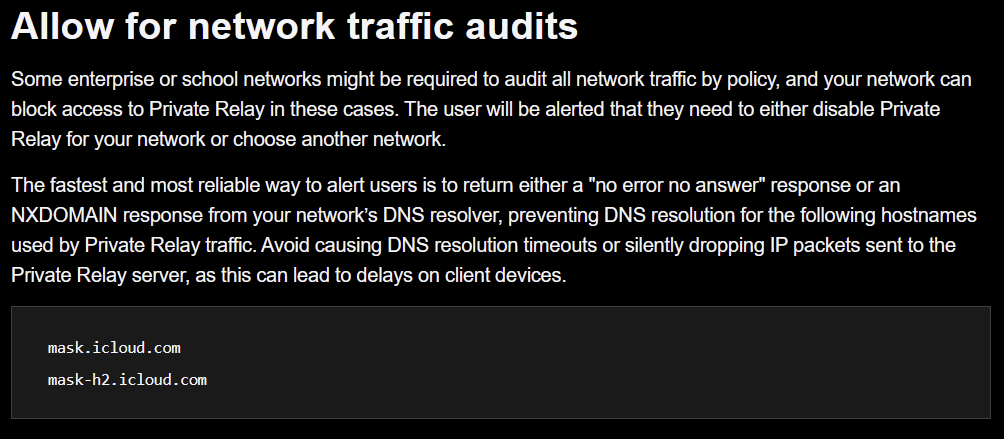
- Certain network restrictions: If you're on a Wi-Fi network that’s a bit… controlling (like at work or on a public network with a weird login), it might have its own rules that clash with Private Relay. It’s like the Wi-Fi is saying, "Listen, honey, in my house, we all know what everyone's up to!"
- Incompatible settings: Sometimes, it’s just a little hiccup in your settings. Your iPhone might be confused, like a tourist trying to read a map upside down. It's not intentionally betraying you, it's just… a little lost.
So, How Do We Get Our Stealth Mode Back?
Fear not, fellow digital ninjas! Reclaiming your internet anonymity is totally doable, and it’s not going to involve any complicated coding or sacrificing your firstborn to the tech gods. We're talking about simple tweaks that'll have you back to lurking in the digital shadows in no time. It’s like rediscovering the secret cookie stash your mom hid!

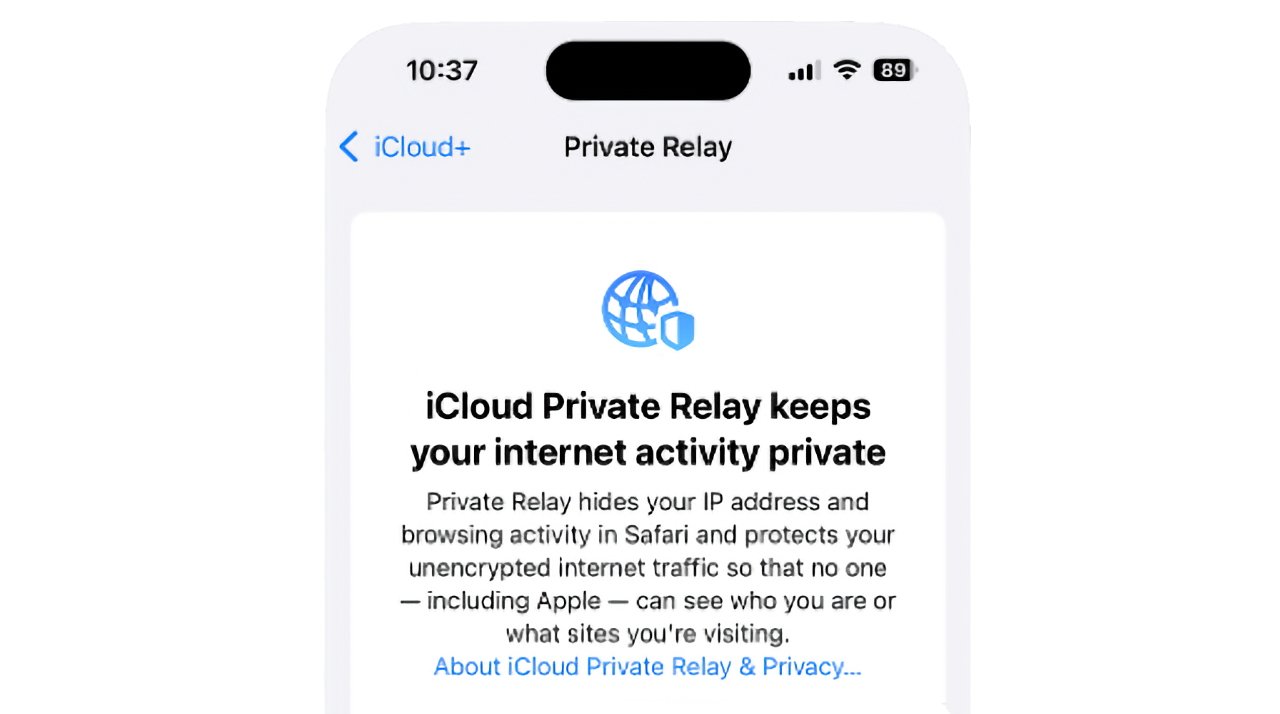
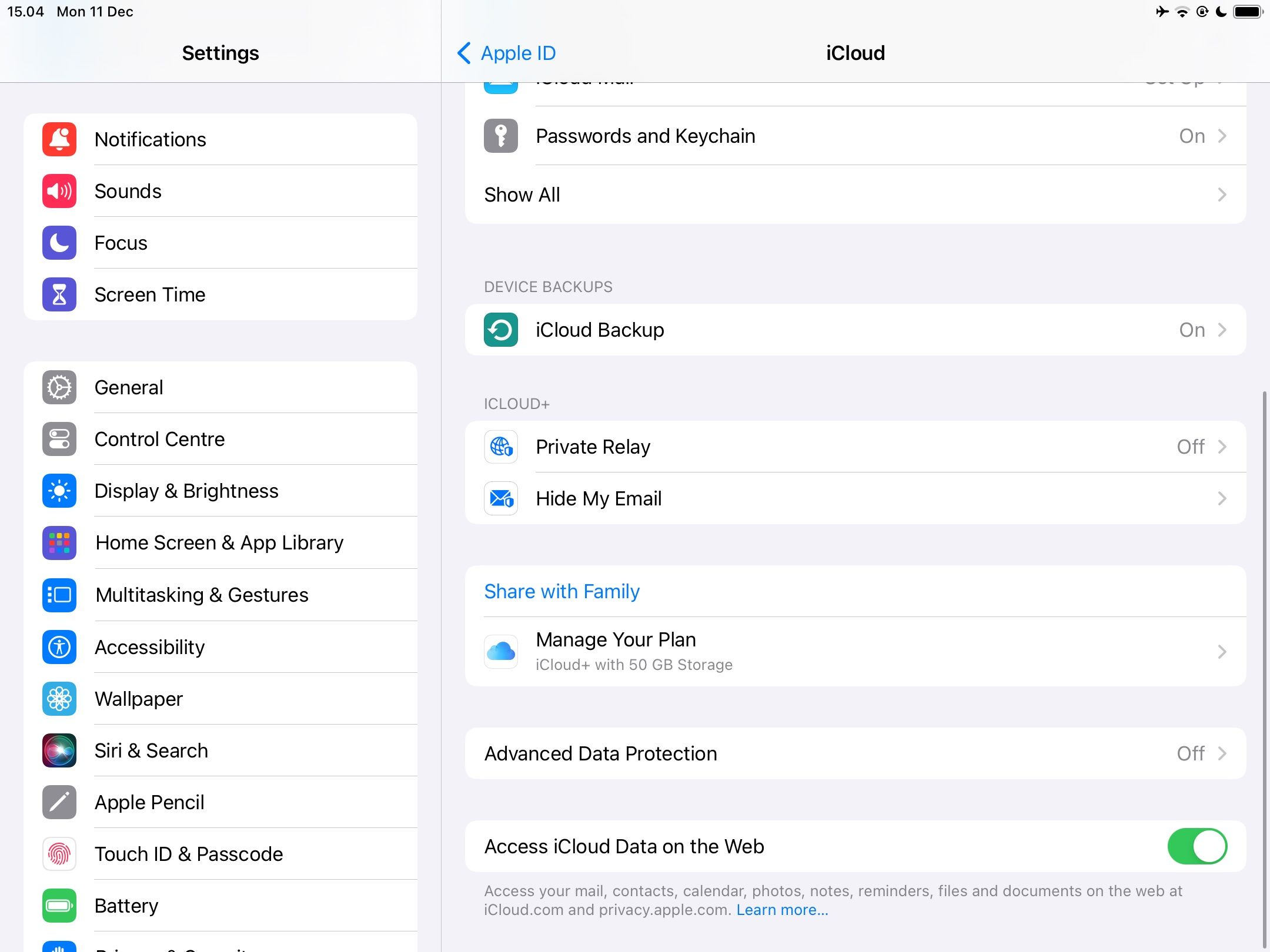
The first thing you’ll want to check is within the iCloud+ settings on your iPhone. This is where the magic of Private Relay lives. Tap on your Apple ID at the top of your Settings app. Then, find iCloud and tap on Private Relay. Here, you can see if it's even turned on! Sometimes, in the chaos of daily phone usage, things can get accidentally toggled off. It’s like forgetting to zip up your jacket – you’re still protected, but it’s not quite as secure!
Now, if Private Relay is indeed ON, but you're still encountering these privacy breaches, it's time to look at those pesky websites. Remember those clubs with the strict bouncers? You can actually tell Private Relay to be less strict for specific websites. This is where you get to be the club manager, deciding who gets the VIP treatment and who has to show their driver's license. When you’re on a website that seems to be messing with your privacy, look for a little icon that looks like two overlapping circles in the address bar. Tap on that, and you'll see an option to allow Private Relay to work or to disable it for that particular site. It’s like telling the bouncer, "Okay, this one's cool. Let them in with their cloak!"
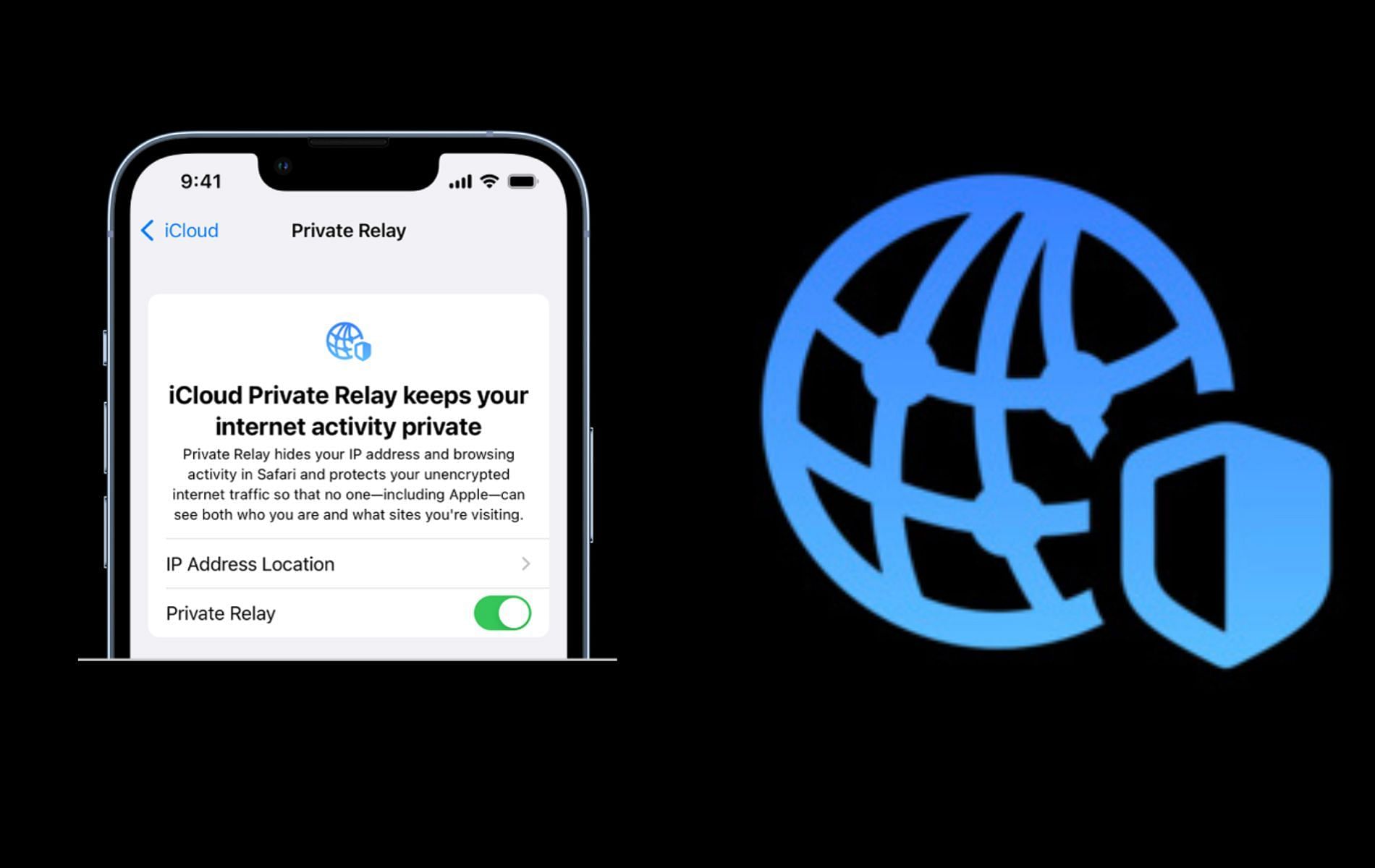
Another key player in this whole operation is your location services. If you’re finding that sites needing your location are the biggest offenders, you might need to adjust their permissions. Go to Settings > Privacy & Security > Location Services. Here, you can see which apps and websites have access to your location. For any that you don’t want to share this information with, you can set their access to "Never" or "Ask Next Time." This is like telling your nosy neighbor to mind their own business about where you’re going!
And finally, if you've tried all of the above and still feel like your privacy is playing hide-and-seek with your browsing history, a good old-fashioned restart can work wonders. Seriously! Sometimes, your iPhone just needs a little nap to clear its head. It’s like giving it a mini-vacation so it can come back refreshed and ready to protect your secrets. Turn it off, count to ten (or twenty if you’re feeling dramatic), and turn it back on.
So there you have it! Your iPhone's Private Relay might be having a bit of a diva moment, but with these simple steps, you can get it back on track. Go forth and browse with confidence, knowing that your late-night grilled cheese research is your own glorious business. Happy (and private) browsing, everyone!