So, you're chilling, maybe scrolling through some awesome photos, or planning that weekend getaway, and suddenly – bam! – Safari throws up its hands and says, "Nope, can't connect to iCloud Private Relay." It's like your internet connection suddenly decided to take a tiny, unexpected nap. Annoying, right? Especially when you’re just trying to live your best digital life!
Don't sweat it, though. This little hiccup, while frustrating, is usually pretty easy to sort out. Think of it like your car sputtering a bit on a smooth road. It's not a breakdown, just a minor tune-up needed.
What Even IS This iCloud Private Relay Thing, Anyway?
Before we dive into fixing it, let's demystify this "iCloud Private Relay" magic. Imagine you're sending a postcard. Normally, everyone from the post office to the person who delivers it can see your address and what you're sending (well, not the actual content, but who it's from and to). iCloud Private Relay is like putting that postcard inside a super-secure, anonymous envelope.
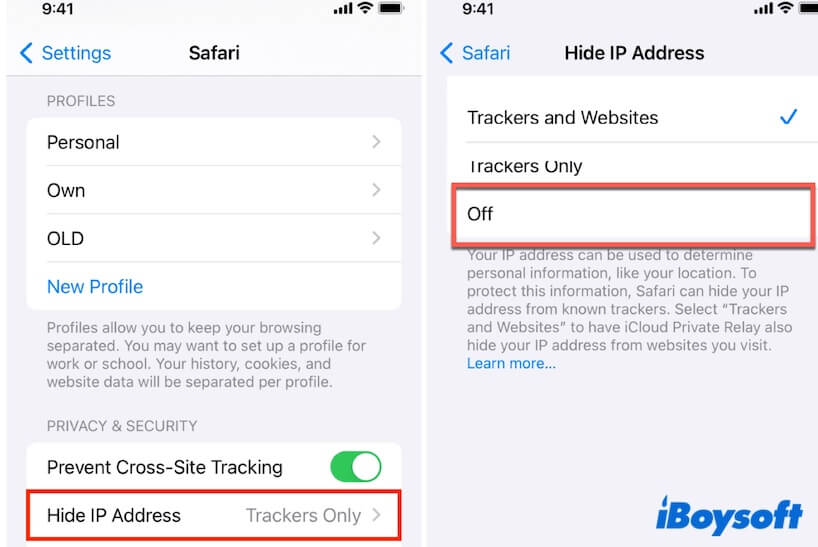
It's a privacy feature that comes with iCloud+ subscriptions. When it's on, it helps hide your IP address and your browsing activity in Safari. This means websites and advertisers have a much harder time tracking you across the web. It’s like wearing a really good disguise while you’re out and about online. Pretty neat, huh?
Think of it like this: you’re going to your favorite bakery. Without Private Relay, it’s like everyone at the bakery knows exactly when you arrive, how long you’re there, and what pastry you’re eyeing. With Private Relay, it's like you've slipped in through a secret back door, and the bakery staff just see someone buying a pastry, but they have no idea it was specifically you and they definitely can't tell your friends you were there!
So, when Safari says it "can't connect," it means this super-secure, anonymous envelope service is having a moment of its own. And while it’s doing its job of protecting you, it’s also preventing you from doing what you want to do.
Why Should I Care If It's Not Connecting?
Honestly? Because it’s about your digital privacy. In a world where our every click can be tracked, a feature like Private Relay is a breath of fresh air. It's like having a quiet corner in a noisy internet cafe. When it’s not working, you're essentially back in the loud, bustling cafe where everyone can see you.
Plus, some websites and services might behave a little… weirdly if they can’t get a proper connection through Private Relay. They might get stuck, or not load correctly. It's like trying to order your usual coffee, but the barista is too confused by your sudden anonymity to take your order. They need to recognize you to serve you properly!
So, fixing this isn't just about getting Safari to behave. It's about ensuring your browsing is as smooth and private as you expect it to be. It’s about reclaiming a little bit of peace in your online world.
Let’s Get Safari Back on Track!
Alright, enough with the analogies. Let’s roll up our sleeves and get this fixed. Most of the time, it’s a quick fix.
The Classic "Turn It Off and On Again" Trick
You know how sometimes your TV remote just stops working? What’s the first thing you do? You fiddle with the batteries, maybe press the button a few extra times. This is the digital equivalent of that.
How to do it:
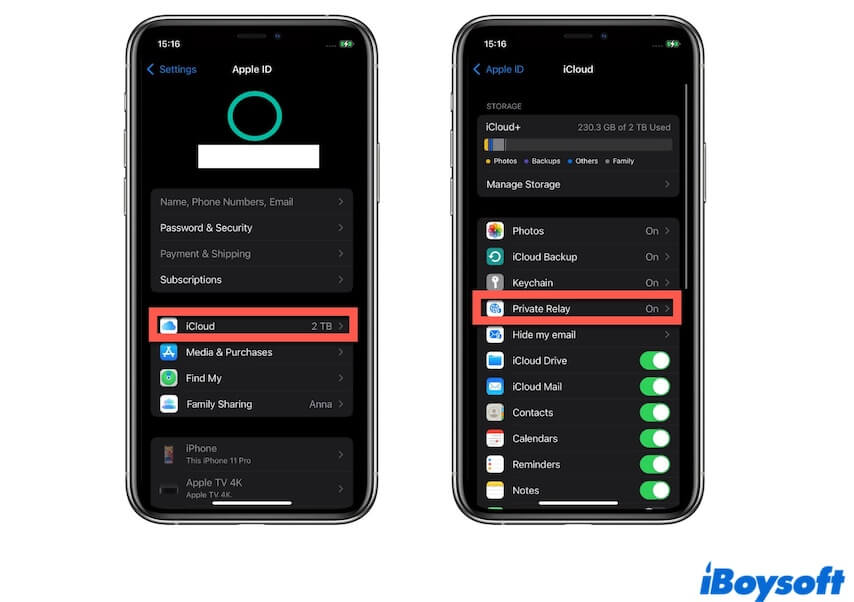
- Go to your iPhone or iPad’s Settings app.
- Tap on your Apple ID name at the very top.
- Tap on iCloud.
- Tap on Private Relay.
- Here, you’ll see a toggle switch. Turn it OFF.
- Now, try opening Safari and visiting a website. If it works, great!
- If you want Private Relay back on (and you probably do!), go back into these settings and turn it back ON.
This little dance often resets the connection and gets everything talking nicely again. It’s like giving the internet a gentle nudge to wake it up.
Check Your Internet Connection – The Obvious, But Important Step
Sometimes, the problem isn't with Private Relay at all. It’s like trying to listen to your favorite podcast on a train with no signal. Private Relay needs a solid internet connection to do its job. If your Wi-Fi is weak or your cellular data is playing up, Private Relay is going to struggle.
Quick checks:
- Are other apps on your phone working fine with the internet?
- Can you load websites in other browsers (if you have them)?
- Is your Wi-Fi symbol full, or your cellular bars looking happy?
If your internet is the culprit, try restarting your router, moving closer to your Wi-Fi, or toggling Airplane mode on and off to refresh your cellular connection. It’s the digital equivalent of checking if the tap is actually turned on before you complain about the water pressure!
Location, Location, Location (for Private Relay, That Is!)
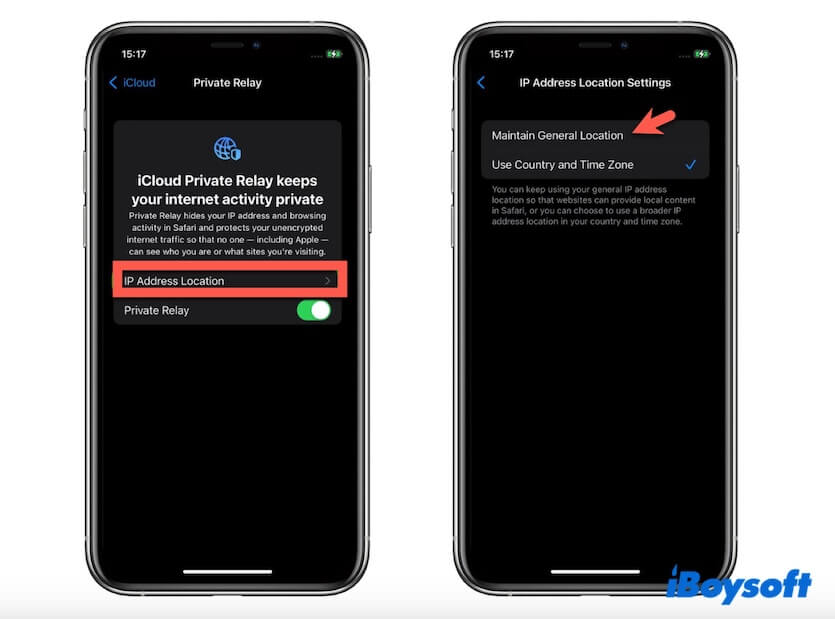
Private Relay has a couple of settings for how it handles your location. Sometimes, if this setting is a bit confused, it can cause connection issues. Think of it like giving someone directions – if you're vague, they might get lost.
How to adjust:
- Go back to Settings > [Your Name] > iCloud > Private Relay.
- Look for an option related to Location Privacy or similar.
- Try switching between General Location / Approximate Location and More Precise Location. See if one works better.
For most browsing, "General Location" is perfectly fine and keeps you more private. But sometimes, a specific website might need that little bit more accuracy to connect properly. It's like telling someone "near the big oak tree" versus "exactly at the third lamppost on Elm Street."
Are You Sure You Want to See This Website? (Website Restrictions)
Some websites, particularly those that are a bit more… sensitive or require strict age verification, can sometimes have trouble playing nice with Private Relay. It’s like trying to get into a very exclusive club with a disguise on – they might not recognize you or trust you.
What to do:
- If you’re only having trouble with one specific website, try turning Private Relay OFF temporarily.
- If the website loads fine, then you've found your culprit. You'll have to decide if that particular website is worth the trade-off in privacy, or if you can access it another way.
- You can also manage website exceptions within Private Relay settings, but for most users, this isn't necessary.
It’s not that Private Relay is being difficult, it’s just doing its job too well for some systems that rely on knowing more about who’s connecting.
The "Update Your Devices" Pep Talk
Software, just like us, sometimes needs a good update to run at its best. Bugs get fixed, and new features are added. If your iOS or iPadOS is a bit behind the times, it might be causing conflicts with Private Relay.
How to check:

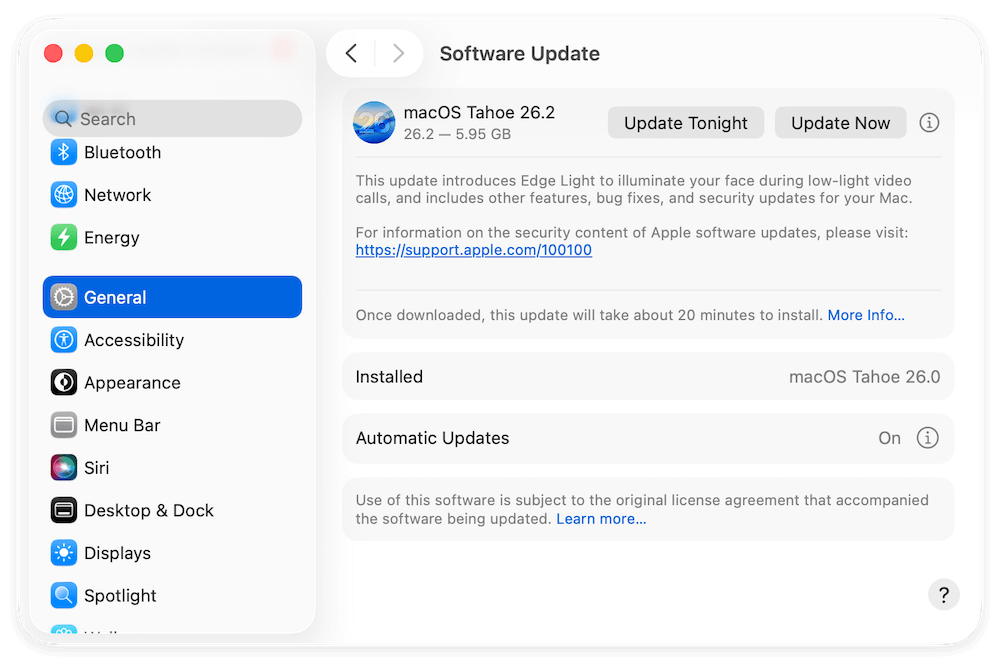
- Go to Settings > General > Software Update.
- If an update is available, download and install it.
This is like giving your phone a fresh coat of paint and a new set of tires. It just runs smoother afterwards.
Last Resort: Reset Network Settings
Okay, if none of the above has worked, it might be time for a slightly more drastic measure. Resetting your network settings will clear out all your Wi-Fi passwords, VPN configurations, and cellular settings. It's like wiping the slate clean for your phone's network connections.
How to do it:
- Go to Settings > General > Transfer or Reset iPhone/iPad.
- Tap Reset.
- Tap Reset Network Settings.
- You’ll need to re-enter your Wi-Fi passwords after this.
This is usually the "call the IT department" solution, but it often fixes persistent network glitches. It’s like giving your phone's network brain a total reset.
You’ve Got This!
Dealing with tech troubles can feel overwhelming, but remember, most of these issues are temporary and solvable. iCloud Private Relay is a fantastic tool for keeping your online life more private, and getting it working again is usually just a few taps away.
So, the next time Safari gives you that "can't connect" message, take a deep breath. You've got this handy guide, and soon enough, you’ll be back to browsing with the peace of mind that Private Relay offers. Happy (and private) browsing!